If you purchased a computer running the Microsoft Windows operating system, you may or may not have purchased Microsoft Office. You have to closely examine the fine print before you buy. Most, if not all, new Windows computers have Microsoft Office Starter edition installed. A window may pop up from time to time, and will pop up if you try to open an Office document type (eg, .doc, .docx, .xls, .xlsx) advising that you need to either buy Office or install the Starter Edition. This Starter Edition is a new Microsoft Offering. Read about it here. Essentially Starter Edition has reduced functionality compared to the full Office product AND it has ads.
As an alternative, there are two fully functional and free Office replacements:
These are in the class of software called "open source." They are no cost and are developed by a combination of company and individual effort.
I don't see much difference between the two, though you might have a preference. Let me know what you think.
PS. Delete the MS Office Starter using standard program deletion (eg, Start, Default Programs, Programs and Features).
Monday, October 1, 2012


Sunday, September 30, 2012
Using an Attached Monitor Instead of Your Laptop Screen
Consider this picture:

The keys along the top are labeled F1 through F12. BUT there is also a small symbol on the key. This picture highlights the special symbol for a “generic” keyboard. Both the details of the symbol and to which key the symbol is assigned depend on the manufacturer.
These symbols are "function hotkeys.” If you hold down the fn key (1 above), push one of the function keys and then release both simultaneously, then something will happen, which depends on the function assigned to the symbol. In the above generic keyboard, the symbols relate to the following functions:
I want to focus on the function of moving your display from your laptop screen to an screen that is attached to your laptop. (This attachment can be through one of serveral plugs on your laptop, depending on your laptop.) I assume you have your alternate screen attached to your laptop and turned on.
The symbol for moving the display from one screen to another may be different than the above example. On my Lenovo Laptop, f3 has the screen toggle function and it the symbol is a rounded square, then a line, then the outline of a laptop.
All the special function symbols are in orange. (Whatever the color of the symbols, the fn key will be the same color.)
So, in this example, holding the fn key down, pushing the f4 key and releasing both simultaneously will toggle the display. Note that there might be a third "toggle." The sequence might be: (1) laptop only, (2) attached screen only, and (3) both screens.
If you don't want to, or can't figure out how to use the function keys, you can go to the control panel and use the Display function. This description will only cover Windows Vista/7 and does not take advantage of some of the built-in functions of fancy video drivers. If you are using the "not-classic" view of the Control Panel, then you click on Start, then Control Panel to open the Control Panel window. Then Click on "Mobile PC- Adjust commonly used mobility settings." Then look for "External Display." Click the "Connect Display" button. If you are Classic view, click "Windows Mobility Center" and do the same thing. The dialog should take you through the steps.
When in doubt, Click Start, then click "Help and Support," usually on the right side of the Start menu, and type "External Display" in the search bar. The resulting list should include specific instructions for your operating system and machine.
If you have specific questions, please ask by submitting a comment.

The keys along the top are labeled F1 through F12. BUT there is also a small symbol on the key. This picture highlights the special symbol for a “generic” keyboard. Both the details of the symbol and to which key the symbol is assigned depend on the manufacturer.
These symbols are "function hotkeys.” If you hold down the fn key (1 above), push one of the function keys and then release both simultaneously, then something will happen, which depends on the function assigned to the symbol. In the above generic keyboard, the symbols relate to the following functions:
- Display system information. fn+esc
- Open Help and Support. fn+f1
- Open the Print Options window. fn+f2
- Open a Web browser. fn+f3
- Alternate between computer display and external display. fn+f4
- Initiate Hibernation. fn+f5
- Initiate QuickLock. fn+f6
- Decrease screen brightness. fn+f7
- Increase screen brightness. fn+f8
- Play, pause, or resume an audio CD or a DVD. fn+f9
- Stop an audio CD or a DVD. fn+f10
- Play the previous track or section on an audio CD or a DVD. fn+f11
- Play the next track on an audio CD or a DVD. fn+f12
I want to focus on the function of moving your display from your laptop screen to an screen that is attached to your laptop. (This attachment can be through one of serveral plugs on your laptop, depending on your laptop.) I assume you have your alternate screen attached to your laptop and turned on.
The symbol for moving the display from one screen to another may be different than the above example. On my Lenovo Laptop, f3 has the screen toggle function and it the symbol is a rounded square, then a line, then the outline of a laptop.
All the special function symbols are in orange. (Whatever the color of the symbols, the fn key will be the same color.)
So, in this example, holding the fn key down, pushing the f4 key and releasing both simultaneously will toggle the display. Note that there might be a third "toggle." The sequence might be: (1) laptop only, (2) attached screen only, and (3) both screens.

If you don't want to, or can't figure out how to use the function keys, you can go to the control panel and use the Display function. This description will only cover Windows Vista/7 and does not take advantage of some of the built-in functions of fancy video drivers. If you are using the "not-classic" view of the Control Panel, then you click on Start, then Control Panel to open the Control Panel window. Then Click on "Mobile PC- Adjust commonly used mobility settings." Then look for "External Display." Click the "Connect Display" button. If you are Classic view, click "Windows Mobility Center" and do the same thing. The dialog should take you through the steps.
When in doubt, Click Start, then click "Help and Support," usually on the right side of the Start menu, and type "External Display" in the search bar. The resulting list should include specific instructions for your operating system and machine.
If you have specific questions, please ask by submitting a comment.
What are PDF files? Alternatives to Adobe Reader
A basic unit of information stored on a computer is the “file.” A file has a name. Sometimes you give the file that name and sometimes the operating system (eg, Windows 7) gives the file the name.
On Windows systems, a file name has the format xxxxxxx.yyy. It is the “yyy” that is the topic of this blog entry. You’ve seen files where yyy is pdf; eg, “lessonplan.pdf.” The yyy tells the Windows system what program can read the file. “pdf” tells Windows that it needs to use the program registered to read .pdf files to open the program. Almost always either the web page or your computer will say that Adobe Reader is required to read .pdf files.
Well, Adobe was the company that first embraced the .pdf file standard and so, historically Adobe Reader has been used to read these files.
If you download a .pdf file, the web page, even a government web page, will stipulate that the file has to be read by Adobe Reader. The page may even contain a link to download Adobe Reader.
I have a complaint about this practice. Almost always, Adobe Reader is NOT the only program that can read .pdf files. In fact, it is one of the bulkiest, least functional of the group of programs that read .pdf files. Furthermore, hackers have exploited weaknesses in the design of Adobe Reader to place malware on your computer. Somewhere I read that, in 2011, some 40% of all malware attacks were using Adobe Reader weaknesses. That is one reason you have been getting almost weekly updates to Adobe Reader, as the developers try to fix the bugs in that program. And in fact, in some cases the fixes introduce new bugs that then have to be fixed.
Adobe Reader introduces a number of inefficiencies; eg, it takes up a lot of space on your hard drive AND it takes up a lot of memory when it is being used.
In my opinion, there are better free .pdf file readers that include more free functionality than Adobe Reader plus being more secure "out of the box." A couple of nice features:
- Annotate (write on) a PDF document and save the annotations.
- Fill PDF forms by editing the form- you type in the fields. You don't have to print the file and hand fill-in the fields
- Provide electronic signature to a form
I recommend either one of two Adobe PDF Reader substitutes:
Saturday, September 29, 2012
Make sure banks don't share your personal information!
You know those "small print" notices you get from your bank that describe changes to your credit card or bank account rules? Don't just stuff them in a file or the circular file cabinet. In particular, the Prvacy Notification I received recently from Chase shows that Chase will share information about our interests, what we spend our money on, and other (personal) information. They will mine this information and share it within their conglomorate, as well as with other financial companies. We don't have any control! We do have control over sharing this information with "affiliates," whomever they are. The notification should give both a web site and a phone number to contact in order to limit "affiliate" sharing. For example, Chase's phone number is 888.868.8618, or the web address is http://www.chase.com. When I went to the Chase site and clicked on the Privacy link, I got this:

I wonder if we should push for South Carolina to limit this information so we opt in instead of out plus perhaps other limitations. What do you think?

You can click on the picture to see a larger version. Note that they actually give more options than described in the Notification. I checked all 3.
I wonder if we should push for South Carolina to limit this information so we opt in instead of out plus perhaps other limitations. What do you think?
Friday, September 28, 2012
Problems Coming Out of Sleep Mode, Windows 7
Problem:
The screen saver is displayed for a time and then, when it is the set time for the computer to go to sleep (set in the Power Options), the screen goes black. This is normal. However, when I jiggle the mouse to wake up the computer, Windows does not go directly to the desktop; it goes to a blue screen with a box containing my user name and the word "locked". There is another icon I can click that says "switch user". If I click that, another screen appears with my name under an icon (my avatar). I click on that and I'm back into my session.
How can I change back to the behavior where jiggling the mouse takes me back to my desktop?
Answer:
Click Start and then Control Panel and then Personalization to get:


More Information
Windows Standby How-to
Tweeking Windows Sleeping Habits
Disable Automatic Lock
The screen saver is displayed for a time and then, when it is the set time for the computer to go to sleep (set in the Power Options), the screen goes black. This is normal. However, when I jiggle the mouse to wake up the computer, Windows does not go directly to the desktop; it goes to a blue screen with a box containing my user name and the word "locked". There is another icon I can click that says "switch user". If I click that, another screen appears with my name under an icon (my avatar). I click on that and I'm back into my session.
How can I change back to the behavior where jiggling the mouse takes me back to my desktop?
Answer:
Click Start and then Control Panel and then Personalization to get:

Click "Screen Saver". In this case, I don't have one, but you might. It doesn't matter, just click the link.
The resulting window looks like this:
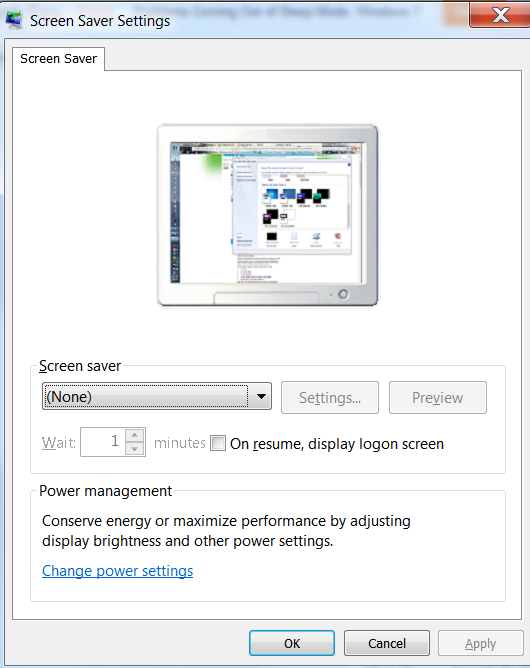
See the check box labeled "On resume, display the logon screen"? That should NOT be checked if you want to go directly back to your session. Click OK.
That's it.
More Information
Windows Standby How-to
Tweeking Windows Sleeping Habits
Disable Automatic Lock
Friday, September 21, 2012
How to attach a file using Google Mail
The topic of this discussion is attaching a file- a document, picture, or anything but a computer program (called an executable). I'm using Google Mail as the email application, but the instructions are generally useful in any email application.
First, start an email message (Compose).
In the resulting email window, you will find an icon that is a paper clip, or it may say something like "Add Attachment" or "Add a File". In Google, this is found right under the subject field.

Click once on it. The result is a the standard Windows dialog box used to navigate to the file. In general, For example:

First, start an email message (Compose).
In the resulting email window, you will find an icon that is a paper clip, or it may say something like "Add Attachment" or "Add a File". In Google, this is found right under the subject field.
Click once on it. The result is a the standard Windows dialog box used to navigate to the file. In general, For example:
- Browse through your files and click the name of the file you'd like to attach.
- Click Open.
To attach multiple files, hold the command (Mac) or Ctrl (PC) key while selecting your files, or click Attach another file.
The email program will go through the upload process and it may ask you to select the files you want attached from a list of uploaded files. Or it may just finish and the files are attached. Google Mail does the latter.
Specifically, suppose you wanted to attach a file that was on a flash drive. In the left pane of the "pick a file" dialog, scroll up and down until you come to "Computer". If you just see "Computer" and nothing indented under that, click on the arrow in front of computer to expose the list of all things "computer." For example:

The key here is to identify your flash drive from this list. I know the name of the drive because I name every flash drive (a topic for another discussion). In this case, it is DGL16GSAFE. If you don't know the name of your flash drive, you will have to eliminate as many drives as you can and then click on each one of the remainder in succession until you find the one that has the file you want to attach. Remember that you may have stored the file in a folder on the flash drive, so you'll have to know the name of the folder or take the time to explore every folder on the flash drive.
In the above picture, I can eliminate drives C, E, M, and SharedDocs because they are "obviously" not flash drives. Then, if I didn't know L was the drive with my file (or files), I'd have to click on each one until I found the drive with the files.
Any questions? Ask in the comments field below.
Wednesday, September 12, 2012
MyWebSearch (or My Web Search)
MyWebSearch is a toolbar item that continues to plague many in our community. Even if removed, it has a way of returning. How? It is included as an recommended or required download on many web pages, including dialogs you use to update other products you legitimately want. The tricky part is that, although the MyWebSearch download may be optional, where you have to check a box in order to download it, the page presented to you for that option:
I don’t have visibility into the algorithms the parent company uses and whether or not they can actually obtain your personal information. Better safe than sorry.
So, if you ever see this, it is not a necessary addition to your browser, is at least an invasion of privacy, and I recommend removal using the instructions linked below.
I recommend the free tool Revo Uninstaller to remove the product. It removes all the vestiges of this adware.
Helpful links:
- Has the option box checked
- May have the text notifying you of the option skillfully hidden on the web page or the dialog- as you are clicking through a download you click right through the checked option.
I don’t have visibility into the algorithms the parent company uses and whether or not they can actually obtain your personal information. Better safe than sorry.
So, if you ever see this, it is not a necessary addition to your browser, is at least an invasion of privacy, and I recommend removal using the instructions linked below.
I recommend the free tool Revo Uninstaller to remove the product. It removes all the vestiges of this adware.
Helpful links:
Subscribe to:
Posts (Atom)
Printfriendly
